Audio layer
Samples and recording
Each performance clip owns four audio lanes. A lane can be a stereo live capture, a stereo resample of Thru's output, a WAV in Move's User Library, or intentionally empty.
Recordings are archived and waveform/transient analysis finishes in the background while playback continues. If you start another audio take before the previous archive is ready, the new take waits and starts automatically once that recording is safely stored. Loading or editing a lane may briefly wait for its archive. Settings save after controls settle; leave takeover normally before powering off so the latest changes can finish saving.
Audio signal flow
Each clip owns four assignments chosen from live recordings, resamples, library WAVs, archived Thru recordings, or Empty.
Single reads the four lanes with up to eight voices. Split assigns lanes 1–2 and four voices to A, lanes 3–4 and four voices to B, with private inserts and shared returns. Shared Dual lets both A and B use all four sources, with four voices each and independent settings. Quad assigns one lane and two voices to each A–D instrument.
Input Monitor bypasses the sampler and effects, then joins the final safety limiter. It is dry and defaults to zero to reduce feedback risk.
Set the input safely
- Use Move's stock sampling controls to select microphone or line input and set the hardware input gain.
- Connect headphones before using the microphone near speakers.
- Open Thru's Mix / Rec page and leave
MONat0.00unless you deliberately need direct monitoring. - Start with
REC GAINat1.00. The display reportsLIMif the stereo-linked −1 dBFS capture limiter reduces the stored signal. Lower Record Gain ifLIMappears frequently.
Quiet playback is not corrected with Record Gain. Record Gain affects newly captured audio. Use the lane gains and Level for playback balance. In either dual mode also check the focused part’s LEVL, Mute, and Blend; see Restore a silent part. Normalize is an explicit destructive sample edit.
Record or replace a lane
- Press Track 1, 2, 3, or 4 to select the destination.
- On Mix / Rec, choose
INPUTfor Move's selected hardware input orMAIN MIXfor Thru's stereo output. - Hold Shift and press Record. The Record key is orange during audio capture.
- Repeat Shift + Record to stop. The completed capture becomes that lane's active source; the other three lanes are unchanged.
- Wait briefly if
SCANNING WAVEFORMappears. The waveform fills in as the scan completes.
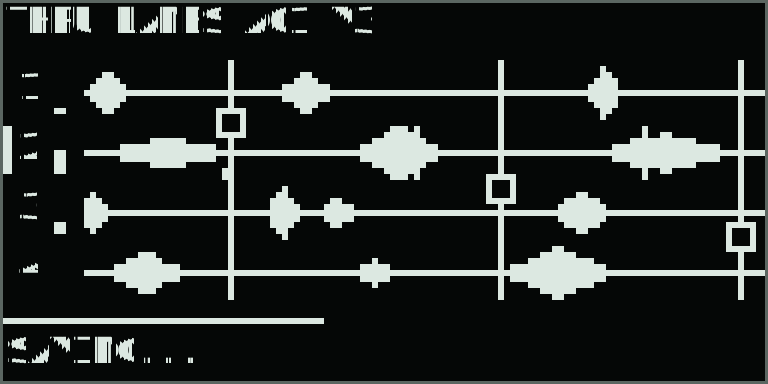
The thin mark at the far left of a waveform row identifies the target lane. In either dual mode, the white backgrounds behind two lane numbers identify editing focus instead. The adjacent lane-weight bar shows playback contribution, not input level. During recording, the horizontal bar near the bottom is the capture level.
Each completed input recording or resample is written as a new stereo WAV. Recording the lane again changes its active assignment but does not overwrite the earlier file. Hold Shift and press Delete to clear the selected lane. The latest capture, clear, library replacement, or sample edit can be reversed once with Undo.
Record a part into a lane
In Split, Shared Dual, or Quad, SRC on Mix / Rec also offers PART A/B, or PART A/B/C/D in Quad. Single offers INPUT and MAIN MIX.
- Use Track to select the destination lane. Stop any sample preview.
- On Mix / Rec, turn SRC to the part you want to capture. Source selection does not switch editing focus.
- Play that part or start its performance loop. Press Shift + Record to begin.
- Press Shift + Record again to stop. The completed stereo take becomes the selected lane's source and is saved to the recordings archive. Wait for loading and saving to finish before another capture.
The tap is after the part's private processing and before mute, part level, and A/B Blend. You can capture a muted or faded-out part. Shared Tape and Delay/Reverb returns are excluded. The mixer remains where you set it.
The previous lane stays available while recording, including Shared Dual and recording a part back into its own source lane. After capture stops, the destination changes using the usual sample-loading transition. In Shared Dual, both programs then hear that new shared source. The normal 12-second lane limit applies; captures use free length.
Load from the sample library
| Control | Browser action |
|---|---|
| Main encoder or Up/Down | Move the selection. Highlighted WAV files audition at Preview Level. |
| Main encoder click | Enter a folder or load the highlighted WAV into the lane. |
| Back | Move to the parent folder or source list; from the source list, return to the waveform page. |
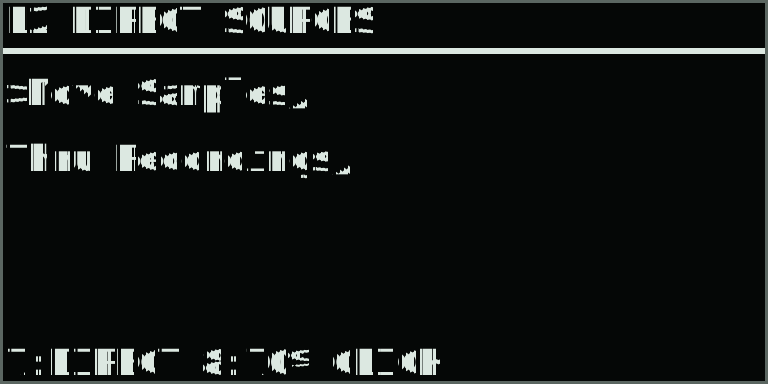
The browser starts with two sources. Move Samples opens /data/UserData/UserLibrary/Samples. Thru Recordings opens the module's capture archive with the newest files first. It accepts mono or stereo PCM 16/24/32-bit and 32-bit-float WAV files. Mono files play from both channels, other sample rates are converted automatically, and material beyond the 12-second lane capacity is truncated.
Sample preview
In Shared Dual, each lane is a source for both instruments. Track selects the destination without changing A/B focus. Part preview follows the focused instrument’s level, mute, and Blend; Capture changes that preview destination smoothly. Direct preview bypasses the part mixer. See Shared Dual.
Highlight a WAV to audition it before loading. Preview Level is knob 8, PREV, on Mix / Rec. Clicking the highlighted file loads it into the chosen lane; recording a new take assigns that capture automatically, without a trip to the browser.
In the browser, knob 7 selects Part or Direct; knob 8 adjusts Preview Level. The route appears in the heading and both controls are identified in the footer. The choice is remembered globally. Older settings begin with Part.
| Knob | Display | Range | What it controls |
|---|---|---|---|
| 7 | PART / DIRECT | 2 choices | Preview Route selects audition through the instrument path or a dry route to mastering. |
| 8 | 8:…% | 0–100% | Preview Level adjusts audition volume; the same setting is PREV on Mix / Rec. |
Part: Single preview passes through the complete effects chain. In Split or Quad, Part preview follows the lane’s destination instrument; Shared Dual follows the focused instrument. It follows LEVL and Mute, plus Blend in dual modes, bypasses private Color/Rotary inserts, and does not feed Delay/Reverb sends. Shared Tape and mastering apply. Select the appropriate Track lane and center Blend to compare both parts.
Direct: audition is dry and independent of part level, mute, Blend, and effects. Preview Level, the program compressor, and the final limiter remain active. This uses the main stereo output; choose an appropriate Preview Level before auditioning during a performance. Existing effect tails can continue ringing after switching routes.
Sources belong to clips
The first time a blank A01–D16 clip is selected, it snapshots the four sources then in use. Its source assignments then remain independent; loading a sample in another clip does not change them. A loaded file is stored as a User Library path; a recording becomes a clip-local capture; a reset lane remains explicitly empty.
When a clip needs different sources, the previous clip can continue until all four lanes are ready. This prevents a partial change with lanes from two clips. The footer reports FILE, CAPTURE, EMPTY, LOADING, or MISSING.
Sample Edit page
| Control | Action |
|---|---|
| Trim Start / End | Set normalized edit boundaries without changing audio yet. |
| Trim Apply | Commit the selected range to a new clip-local capture. |
| Reverse | Reverse the selected lane's stored audio. |
| Normalize | Scale the stored peak to −1 dBFS. This changes playback level and leaves room for conversion and playback processing. |
| Edge Fade | Apply short fades at both boundaries to reduce clicks. |
Knobs 7–8 show reserved boxes because Record Gain is on Mix / Rec and Level is on Engine. The action controls show TURN until either encoder direction is moved. A successful action temporarily changes the title to TRIMMED L1, REVERSED L1, NORMALIZED L1, or FADED L1. Every committed edit writes a new archive WAV; Undo restores the source from before the most recent edit. Wait for any pending recording archive or queued clip to finish preparing before undoing.
Gain staging and output safety
At LEVL 1.00, the instrument path reaches a full nominal output. In either dual mode, the two part levels and Blend feed the combined mastering path. A stereo-linked program compressor adds 3 dB of makeup below its −12 dBFS threshold, then applies a gentle 2:1 ratio above it. This raises quieter detail and controls sustained peaks without changing the stereo image. LEVL values above 1.00 push the program stage harder. Polyphony Compensation is on by default and smoothly controls summed energy as more independent voices or Rolls overlap; it does not change pad velocity behavior.
A separate stereo-linked lookahead limiter remains the final safety stage. Its −1 dBFS ceiling catches transient stack, effect, monitor, and polyphonic peaks without flat-topping them. The program compressor supplies everyday density; persistent limiter reduction still means Lane Gain, Level, effect Drive/feedback, Record Gain, or Input Monitor should be reduced.
Shift + Menu opens the System Report. LIMIT CURRENT is the final limiter's present gain reduction and LIMIT MAX is the largest reduction observed since takeover started; a larger number means more attenuation. The complete report is explained in the Shortcut Reference. Imported WAV files at Move's sample rate are copied directly. Other sample rates use high-quality conversion, while transposed playback uses smoother interpolation to reduce rough high-frequency edges.
Saving, recall, and backup
Thru autosaves changed settings and completed captures, then saves again when Back exits from the main waveform page. It also keeps one recovery copy in case a metadata save is interrupted. Capture WAVs are append-only during normal use: rerecording, editing, clearing, and resetting do not delete older files.
The footer shows SAVING... while capture archives or the latest settings are pending, then briefly shows SAVED after both are committed. Recording has its usual capture indicators. A SAVE FAILED: RETRYING message stays visible until saving recovers; the current take stays in memory while Thru retries.
Export a set backup
Uninstalling a module may remove its data. Before uninstalling or moving to another Move, export the module data with:
scripts/export-set.sh /path/to/s3g-thru-data Thru-set.tar.gzThe exported archive includes current metadata, recovery files, saved lane WAVs, and every local capture. User Library samples remain external paths and should be backed up separately. Because old captures are retained, storage use grows over time. Export before manually removing unused WAVs; deleting a file still assigned to a clip makes that lane report MISSING.